Google Business Profile Sports Venue Setup: A Step-by-Step Guide to Getting Found
Most people find your venue on Google before they ever see your website. Here's how to set up your Google Business Profile, step by step: categories, hours, photos, booking links and review replies.
On this page
It's 6:40 on a Saturday and the phone is ringing before you've opened the roller door. A parent wants to know if you're open, because Google says you open at 9. Your Google Business Profile sports venue listing is the first thing most locals see when they search for courts, comps or a holiday camp nearby, and when it's wrong, it costs you bookings quietly.
This guide walks through setting it up properly: categories, hours, photos, booking links and replying to reviews. You can do most of it in an afternoon, then keep it right with a short monthly check.
Why your Google Business Profile sports venue listing matters
When someone types "futsal near me" or "netball courts" into Google or Maps, they usually get the map pack before any websites. That box shows your name, star rating, hours, photos and a few buttons. Plenty of people decide from that box alone. They call, tap for directions, or move on to the next venue.
That means your profile does a different job to your website. Your site explains everything. Your profile answers three quick questions: are you the right kind of place, are you open, and how do I book? If you haven't sorted your website yet, our guide on whether you need a sports venue website covers how the two work together.
What you need before you start
Gather these first so you're not hunting mid-setup:
- Your exact business name as it appears on your signage. Don't add keywords to it. Google's guidelines say not to, and stuffed names can get a listing suspended.
- Your street address and whether customers come to you (venues) or you go to them (mobile coaching).
- A local phone number that someone actually answers, or that goes to a useful voicemail.
- Your real operating hours, including public holidays and school holiday changes.
- A dozen good photos of your courts, entrance, parking and facilities.
- The links you want people to land on: bookings, programs, camps, parties.
Step 1: Claim and verify the listing
Search your venue name on Google Maps. If a listing already exists (Google sometimes creates one from public info, or a past manager set one up), use the option to claim it. If nothing exists, create a new profile with your Google account.
Use a shared business Google account, not a staff member's personal one. A setup we see a lot: the person who created the listing left two seasons ago and nobody can log in. Add a second owner or manager straight away so you're never locked out.
Google will then ask you to verify that you run the business. The method varies, and Google changes it from time to time, so follow whatever it offers you. Don't make big edits until verification is complete.
Step 2: Choose categories that match real searches
Categories tell Google what searches you should appear for. You get one primary category and can add several secondary ones.
Your primary category should describe what most of your revenue comes from. Type into the category field and pick from the suggestions; you can't invent your own. You'll see options along the lines of sports complex, sports club, tennis court or sports school. Choose what genuinely exists in the list and fits.
Secondary categories cover the other things you do. A two-court indoor venue that also runs junior coaching and birthday parties might list the courts as primary, then add a sports school category and a party-related one if a fitting option exists.
| What you mainly sell | Primary category direction | Secondary ideas |
|---|---|---|
| Court or field hire | The closest venue-type category (sports complex, specific court type) | Sports club, sports school |
| Coaching programs and camps | A sports school or coaching-type category | Your sport-specific category |
| Social comps and leagues | Sports club or league-type category | The venue-type category |
Don't add categories for things you only do once a year. Every category should match a search where you'd be a genuinely good answer.
Step 3: Set hours that are true on a Saturday morning
This is where most profiles quietly fail. A setup we see a lot: the hours listed are the office hours, 9 to 5 weekdays, while the courts run from 6am to 10pm with Saturday comps from 7:30. Someone searches at 7pm, sees "Closed", and books elsewhere.
Set your regular hours to when customers can actually play or walk in. If the front desk isn't staffed at 6am but bookings run, the venue is still open to players.
Then use special hours for public holidays, the Christmas shutdown and any one-off closures. Google sometimes prompts you before public holidays; answer it. If a session is called off for weather, update your comms first. A clear wet-weather policy does more than the profile, but a closure day belongs in special hours too.
If you run different hours in school holidays, put the change in a week before it happens, not on the day.
Step 4: Add photos that answer questions
Photos aren't decoration. Every one should answer a question a first-timer has. Aim for a spread like this:
- The entrance from the car park, so people know where to walk in.
- Each court or field, well lit, with markings visible.
- Parking and drop-off, which parents always want to know about.
- Change rooms, toilets and the canteen if you have them.
- The party room or spectator area if you sell parties.
- A session in progress, shot from behind or at a distance.
Be careful with that last one. Get permission before posting photos where people can be identified, and take extra care with children. Check your state's child-safe guidance and your sport's policy before posting anything with juniors in it.
Set a logo and a cover photo, then add a few fresh photos each season. Customers can upload their own photos too, so check what's there and report anything inappropriate.
Step 5: Point booking links at the right page
Your profile lets you add a website link and, for many business types, a booking or appointment link. This is the most valuable button on the listing, and the most common mistake is pointing it at your homepage.
Send people to the page that finishes the job. If they searched for court hire, the link should open your booking calendar, not an "About us" page three taps away. If you're still taking bookings by phone, start with our guide to taking online bookings and ending the phone tag.
| Link field | Best destination | Why |
|---|---|---|
| Website | Your homepage | General first look for new customers |
| Booking or appointment link | Your court and field booking page | Shortest path from search to paid booking |
| Menu or services (where offered) | Programs or camps page | Parents searching for coaching land on terms and dates |
Check each link on your phone, logged out, the way a stranger would see it. If it asks them to create an account before they've seen a single time slot, that's friction worth fixing.
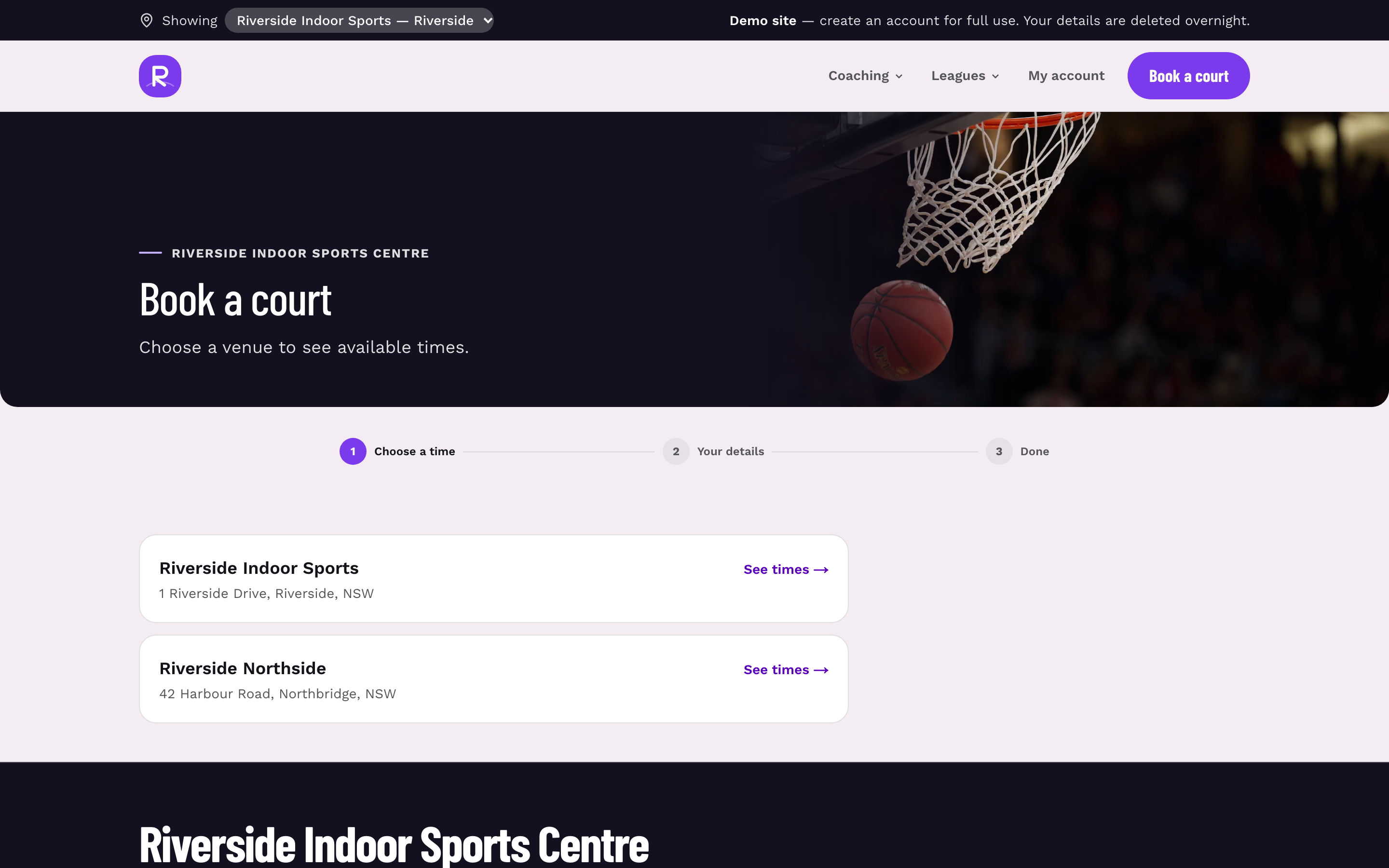
On Sweepa, your bookings, programs, camps and parties each have their own public page on your venue site, so each link field can go straight to the right one. Our court and field booking software lets people pay when they book, so the tap from Google ends in a confirmed slot.
Step 6: Reply to reviews, good and bad
Reviews feed your star rating, and your replies are public. People read them to judge how you'd treat them.
For positive reviews, reply briefly and specifically. "Thanks for coming down for the Thursday social comp, see you next round" beats a copy-pasted "Thanks for your review!"
For negative reviews, reply calmly and once:
- Thank them and acknowledge the specific issue.
- Explain what happened in one line, without arguing.
- Say what you've changed, if anything.
- Offer a direct contact to sort it out offline.
Never post personal details, booking info or anything about a child in a reply. If a review breaks Google's content policies, report it rather than fighting it in public.
Asking for reviews is fine. Ask everyone the same way, for example in the follow-up email after a camp or at the end of a season. Don't offer discounts or freebies for reviews, and don't only ask the happy ones. Google's review policies prohibit incentives, so read them before you set up a routine.
Common mistakes we see
- Keyword-stuffed names, like "Smith Street Courts Best Futsal Netball Parties". Use your real name.
- Office hours instead of playing hours, so you look closed when you're busiest.
- One login, held by someone who's left. Always have two managers.
- Booking links to the homepage, adding taps between a ready customer and a paid slot.
- Ignoring reviews for months, then replying to all of them in one defensive afternoon.
- No special hours over Christmas, so people turn up to a locked gate.
Your monthly 20-minute profile check
Put this in the calendar for the first Monday of each month:
- [ ] Hours and special hours correct for the next six weeks, including school holidays and public holidays
- [ ] Booking, website and program links tested on a phone, logged out
- [ ] Two or three new photos added if anything has changed
- [ ] Every review from the past month has a reply
- [ ] Any customer-uploaded photos checked
- [ ] Categories still match what you sell this season
- [ ] Both managers can still log in
Once the profile is solid, it's one part of being found. Our guide on how to promote a sports venue locally covers the rest: schools, clubs, signage and word of mouth. To see how bookings, programs and your venue site fit together, have a look at everything Sweepa does on one page.
FAQ
Is a Google Business Profile free for sports venues?
Yes, creating and managing a Google Business Profile doesn't cost anything. You need a Google account and to complete Google's verification process. Ads on Google are a separate, paid product and aren't required to have a profile.
Can a mobile coaching business without a venue have a Google Business Profile?
Yes. Google lets businesses that travel to customers set a service area instead of showing a street address. If you coach at hired courts or schools rather than your own premises, set it up as a service-area business and list the suburbs you actually cover.
What should I put as the booking link on my Google profile?
Link straight to the page where people can see available times and book, not your homepage. If you run programs or camps as well as hire, use the other link fields for those pages. Test every link on a phone while logged out to see what a new customer sees.
How quickly should I reply to Google reviews?
Aim to reply within a few days, and make it a regular habit rather than a once-a-year catch-up. Keep replies short, specific and calm, especially for negative reviews. Never include personal details or booking information in a public reply.
Can I offer a discount in exchange for a Google review?
No. Google's review policies don't allow incentives for reviews, and breaking them can lead to reviews being removed. You can ask every customer for honest feedback in the same way, such as in a follow-up email after a camp or season.
Why does my venue show as closed when we're open?
Usually your regular hours reflect office hours rather than playing hours, or a special-hours entry from a past holiday is still active. Update regular hours to when customers can play, then check special hours for the next few weeks. Reviewing this monthly stops it happening again.